How to Save Pornhub Videos on PC for Offline Viewing (2026)
Sometimes you want to keep a video available for later viewing without depending on an internet connection, browser tabs, or a long watch-history list. If the video is your own upload or you have the creator’s clear permission to keep it, saving an authorized local copy can make personal organization much easier.
This guide explains a desktop workflow for saving Pornhub videos you are authorized to access and retain.
Important: Only save videos that you own or have explicit permission to save. Do not redistribute, repost, sell, or share another person’s content without authorization. Follow applicable laws and the platform’s terms.
Can You Save Pornhub Videos on a PC?
A browser bookmark keeps a link. It does not give you an offline copy, and it does not help if a page changes or a video is no longer available.
For your own uploads or creator-authorized content, a local copy can be helpful when you want to:
- Watch without an internet connection
- Keep a backup of your own uploaded videos
- Organize approved reference material in one library
- Avoid searching through browser history later
- Create a personal archive of content you are allowed to retain
How to Save Authorized Pornhub Videos with VidBrowser
VidBrowser is a desktop browser for video viewing, clipping, and local saving on Windows and Mac.
Step 1: Download and install VidBrowser
Download VidBrowser for Windows or Mac and complete the standard installation.
Step 2: Open Pornhub in VidBrowser
Launch VidBrowser and open Pornhub in the browser. Sign in only if your account needs to access content you own or are authorized to view.
Step 3: Open the video and let it play
Navigate to the specific video and start normal playback. VidBrowser checks the page for playable video resources during the regular browser session.
Step 4: Save the detected video
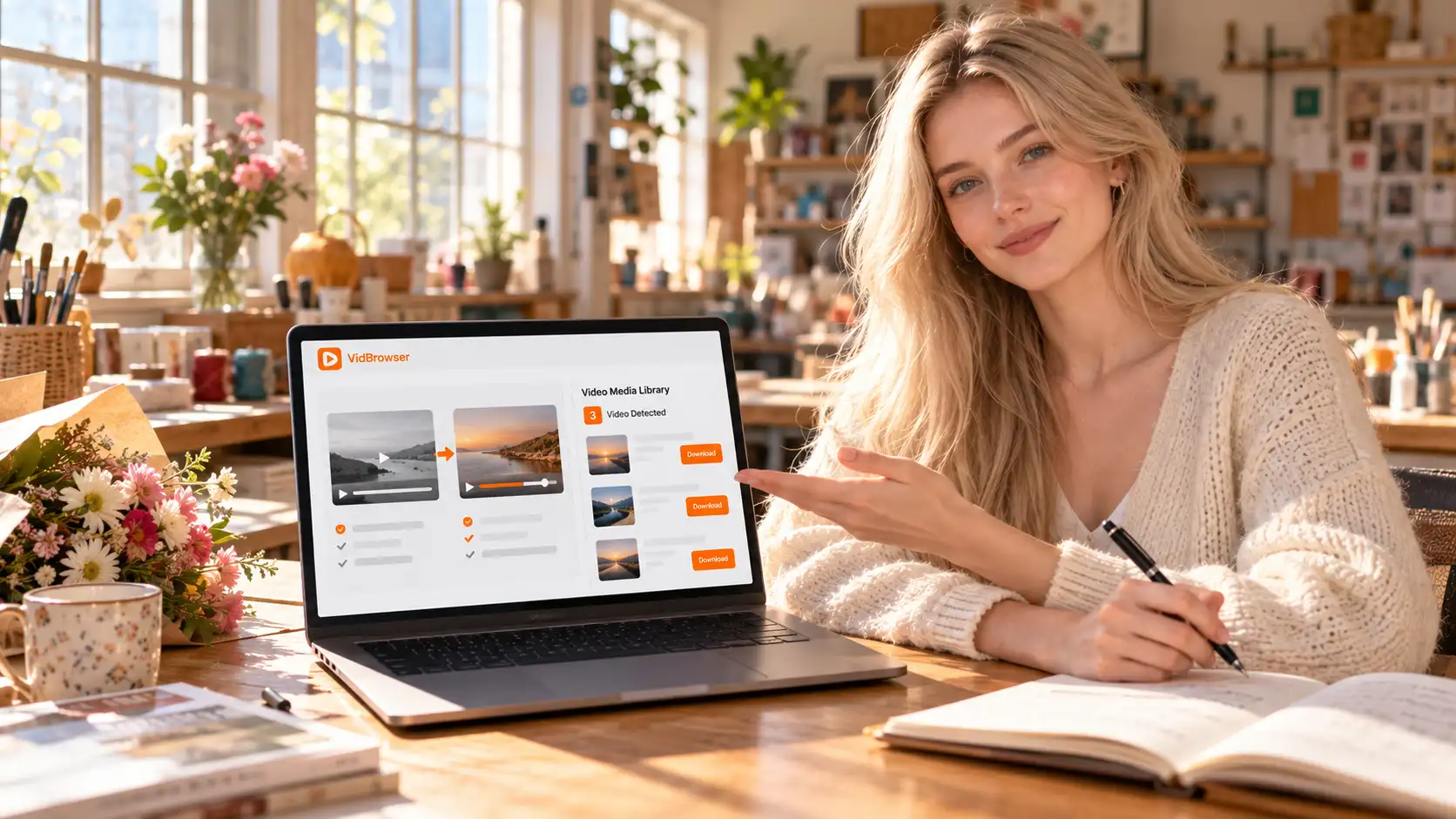
When a video is available to save, VidBrowser displays the orange “Video Detected · 1-Click Save” badge. Select it, choose the destination folder, and begin the save.
Step 5: Find the file in your library
When the save is complete, open the file from your selected folder or locate it through VidBrowser’s download history. You can then watch it offline in a compatible media player.
Keep Your Personal Video Library Organized
Saving files without a structure quickly becomes difficult to manage. A simple organization system makes a big difference:
- Create a dedicated private folder on your computer
- Use clear filenames based on your own content or approved source
- Separate original uploads from approved reference files
- Review the folder regularly and remove files you no longer need
- Keep saved files private and do not share them without permission
VidBrowser also keeps a download history, helping you find previously saved files without reopening old browser tabs.
What to Do if a Video Is Not Detected
First, confirm that the video plays normally in the browser. Refresh the page, wait a few seconds after playback begins, and try again.
If you cannot access or play a video through your account, do not attempt to bypass privacy settings, account restrictions, creator controls, or platform protections. VidBrowser is intended for content you can already lawfully access and are authorized to retain.
Why Use a Desktop Video Browser?
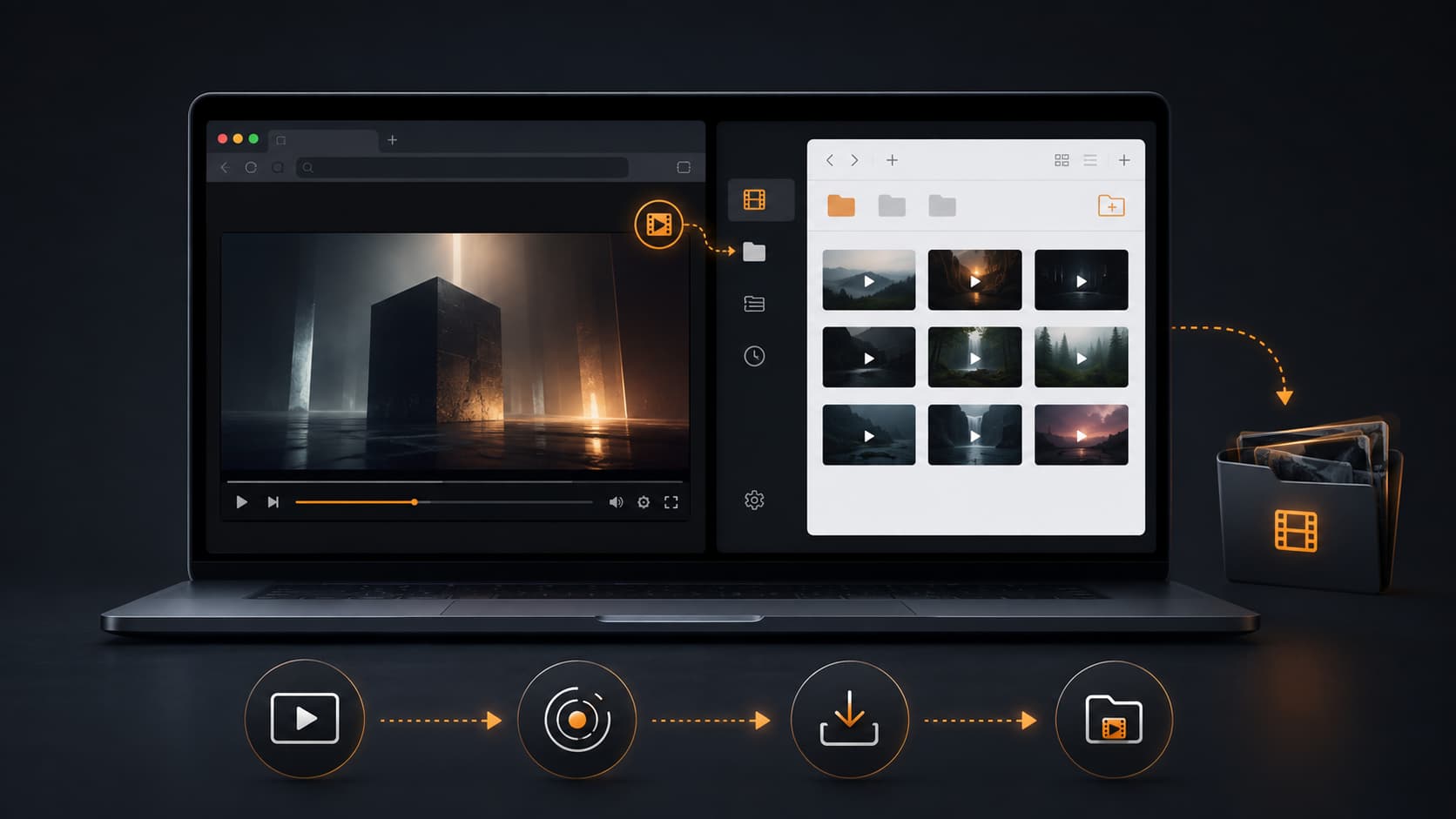
A normal browser, a separate download utility, and a video editor can create an unnecessarily fragmented workflow. VidBrowser combines video browsing, detection, clipping, local saving, and library management in one desktop app.
For your own uploads or content you have permission to keep, that means less time switching tools and more control over your personal media library.
FAQ
Can I use VidBrowser on Windows and Mac?
Yes. VidBrowser is available for Windows and Mac desktop computers.
Can I save videos from a private account?
Only when your account already has legitimate access and you have permission from the creator or rights holder to retain the content.
Can I save my own uploaded videos?
Yes. Saving your own uploads locally is a practical backup and organization method.
Can I watch a saved video offline?
Yes. Once an authorized video has been saved locally in a compatible format, you can watch it without an internet connection.
Does saving a video give me the right to repost it?
No. Saving a file does not transfer copyright, ownership, or reuse rights. Always obtain permission before sharing or reposting another person’s content.
Save the Videos You’re Authorized to Keep
Download VidBrowser for Windows or Mac to browse, clip, and save authorized video content in one desktop workflow.